CRM guide for real estate agencies: buyer requests, portfolio matching and viewings
When you add a new listing, it’s hard to remember which buyer it suits. We explain how to record buyer requests, match them with your portfolio, and keep track of viewings and agent commissions.
By BEF CRM Ekibi Updated

Contents 9 sections
At a real estate agency, work runs in two directions: property owners and the portfolio on one side, buyers and tenants on the other. When a buyer’s budget, number of rooms and neighborhood preference stay in the agent’s head or phone, no one remembers whom a new listing suits. After a viewing, who is negotiating and who is waiting on a loan also ends up in scattered notes.
In this guide, we explain how a real estate agency can bring buyer requests and its portfolio together in BEF CRM. For the examples, picture a fictional agency called BEF Emlak. A summary of the preset settings is on the Real estate agencies page.
Where do requests come from?
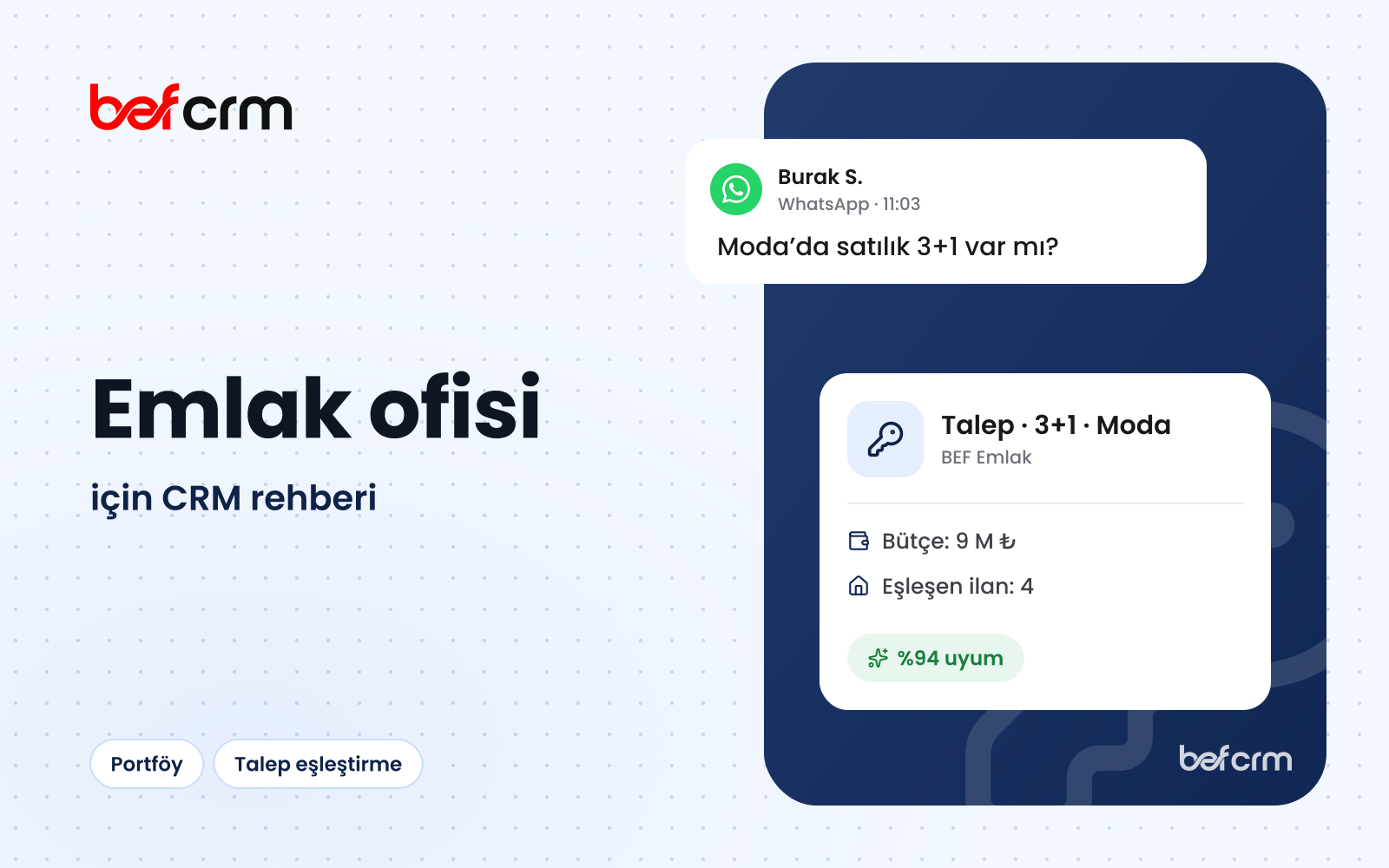
Buyers write from listing sites, from listing posts on Instagram and via WhatsApp. A record is opened for every new conversation from the accounts you connect, and its source is written; for buyers who call or visit the office, you select the source manually. Three pieces of information asked in the first conversation shape the rest of the work: budget, number of rooms and neighborhood. Define them as custom fields; AI notes can fill in the fields you mark from the conversation.
Stages and naming
With the industry settings, the board comes with four stages; leads appear as “Prospects”, customers as “Customers” and sales as “Deals”.
| Stage | When does a record move here? | Work at this stage |
|---|---|---|
| Info provided | Budget and preferences recorded, suitable listings sent | Suggest a day for a viewing |
| Viewing | Viewing appointment on the calendar | Note impressions after the viewing |
| Negotiation / offer | The buyer proposed a price or terms | Talk to the property owner and note the process in the record |
| Contract | Agreement reached, deal credited to the agent | Complete the commission and paperwork |
Keep sale and rental requests separate; rentals turn over faster and don’t fit the same follow-up times. If you give stages follow-up times in business days, a record that exceeds its time is flagged in red.

Portfolio and matching
In the real estate portfolio and request matching module, the listing card holds type, square meters, number of rooms, price and location, with sale and rental kept separate. When a buyer’s request is on record, a match suggestion appears as soon as a suitable listing is added. You send the listing via WhatsApp with a shareable listing page link. The listing agreement with the property owner is also kept on record.


Viewing appointments are added to the calendar; with an online booking link, you can let the buyer pick a convenient time. Before the viewing, a reminder with “I’m coming”, “Let’s cancel” and “Another time” buttons goes out. Recommended modules: Real estate portfolio and request matching, Staff bonuses and commissions.

Close reasons and follow-up
The preset close reasons are: Found the price too high, No suitable property, Loan not approved, No need right now, Worked with another agent.
- No suitable property: a task is created for the rep 14 days later. If new listings were added to the portfolio in the meantime, check the match suggestions before following up.
- Found the price too high: a task is created 30 days later; suggest listings whose prices have been updated.
- Loan not approved: the buyer’s situation may change; add your own follow-up time.
- Worked with another agent: no follow-up needed; if this reason shows up often, it’s a sign to review your response time.
How rules are set up is explained in the tasks and calendar section.
Agent commission
Every deal is credited to an agent; according to the bonus and commission rules, a deals and commission report per agent is produced at month end. Role settings determine whether agents see all records or only their own; cost and profit information can also be limited to authorized people.

AI assistant
The assistant can share the general information you’ve written in your knowledge base (working hours, areas you serve, your process) and ask the buyer about budget and preferences. Negotiation, price reductions and firm viewing commitments belong to the agent; the assistant doesn’t offer discounts or make price commitments. For an agent taking over a long thread, the conversation summary shows what the customer wants and the next step.
Campaigns and consent
You may want to send bulk messages about new projects or listings in a specific area. The Campaigns screen skips people without commercial message consent, and the same person doesn’t get a second campaign within 7 days. Sending a single matching listing to the relevant buyer in a personal message, however, is often more appropriate than a bulk send.
What to check in the weekly report
- Match suggestions for new listings: who received them, and who didn’t?
- Buyers who had a viewing but didn’t move on to negotiation.
- Open records, viewings and deals per agent.
- The share of “No suitable property” in loss analysis; it shows which property type your portfolio search should focus on.
First-week checklist
- Connect WhatsApp and Instagram; see listing questions open records.
- Define custom fields for budget, number of rooms, neighborhood and sale / rental.
- Enter your current portfolio as listing cards and attach the listing agreements.
- Add your agents and define their roles and commission rules.
- Try the shareable listing page with one listing.
How do match suggestions work?
When a buyer’s preferences such as budget, number of rooms and location are on record, a match suggestion appears when a listing that fits those preferences is added. You review the suggestion and send the listing to the buyer with a listing page link.
Can I track rentals and sales separately?
Yes. The listing card keeps sale and rental separate; by also separating requests with a custom field, you can see them separately in reports.
How is the commission report produced?
Every deal is credited to an agent. Based on the bonus rules you define, a deals and commission report per agent is created at month end.