CRM guide for beauty salons and laser centers: from price question to regular customer
Most messages a salon receives start with “How much is it?”. We set up the stages, close reasons, and package and reminder flow that turn price inquiries into appointments, and appointments into regular visits.
By BEF CRM Ekibi Updated
Contents 8 sections
Most messages a beauty salon receives start with the same question: “How much is it?” It comes as a reply to an Instagram story, as a comment under a post or via WhatsApp. The person who learns the price says thanks, and the conversation ends there. Who booked and who said “let me think about it” and vanished only comes to light if someone happens to remember.
In this guide, we set up a simple structure in BEF CRM for beauty salons, hair salons and laser centers: where messages come from, how to use stages, close reasons and follow-up rules, the package and reminder flow, the AI assistant’s limits and what to do in the first week. You can also see a summary of the preset settings on the Beauty salons, hair salons and laser clinics page.
Where do customers come from?
At salons, the first contact usually happens on Instagram: a story reply, a post comment or a direct message. WhatsApp and referrals follow. When channels sit on different phones and with different people, customers who ask about price and then vanish go unnoticed.
In BEF CRM, messages from the accounts you connect are gathered in the shared inbox, and a lead record is opened for every new conversation. Whether the record came from an ad, a story or a post comment is written automatically as its source; for customers who walk into the salon, you select the source manually. With comment rules, you can send a private message to anyone who writes “price” under a post and open a record at the same time.

Use stages to reflect where the customer stands
When you choose beauty as your industry, the lead board opens with four stages. Leads appear as “Prospects”, customers as “Customers” and sales as “Sales”. Give each stage a follow-up time in business days; a record that exceeds it is flagged in red and the owner is notified.
| Stage | When does a record move here? | Work at this stage |
|---|---|---|
| Price info given | The service and price were sent to the customer | Clarify the need with a single question and send the booking link |
| Consultation / patch test | A consultation date for laser or skin care is set | Check the intake answers and make sure the reminder went out |
| Appointment booked | The day and time for the service are confirmed | Watch for the reply to the reminder with buttons |
| Service received | The customer received the service and the sale was entered | Plan the next visit based on the package or maintenance interval |
For session-based services like laser, the consultation should remain a separate stage; for one-off services like hair and nails, you can skip it and move the record straight to “Appointment booked”. You can change stage names and their order in Settings; details are in the leads section of the system guide.

Close reasons and follow-up rules
When a record is closed as lost, the reason is selected from the list. The preset reasons are: Found the price too high, Appointment time didn’t work, Location too far, Skin / hair type not suitable, No need right now. Each reason calls for a different response:
- Found the price too high: the preset rule creates a task for the rep in the next campaign period. At that point, share the campaign details with these people in a personal message.
- Appointment time didn’t work: the preset rule creates a task for the rep 7 days later. When you follow up, send the booking link that shows free slots directly.
- Location too far and Skin / hair type not suitable: these usually don’t need follow-up. If the specialist made the suitability call, write the reason in the notes field as well.
- No need right now: for seasonal services (for example, laser before summer), add your own rule and choose when to follow up.
Rules run based on the close reason; the action can be a task for the rep or an automatic message to the customer. To add a new rule or change the timings, see the tasks and reminders page; tasks also show up in your connected Google, Outlook or iCloud calendar.
Appointments, packages and repeat visits
On the online booking page, the customer chooses the service, specialist and free slot themselves. With the industry settings, the booking form comes with five preset questions (such as “Which service would you like?”). For laser, you can ask about sun exposure and previous laser experience as intake questions; the answers land in the record as “Intake information”.

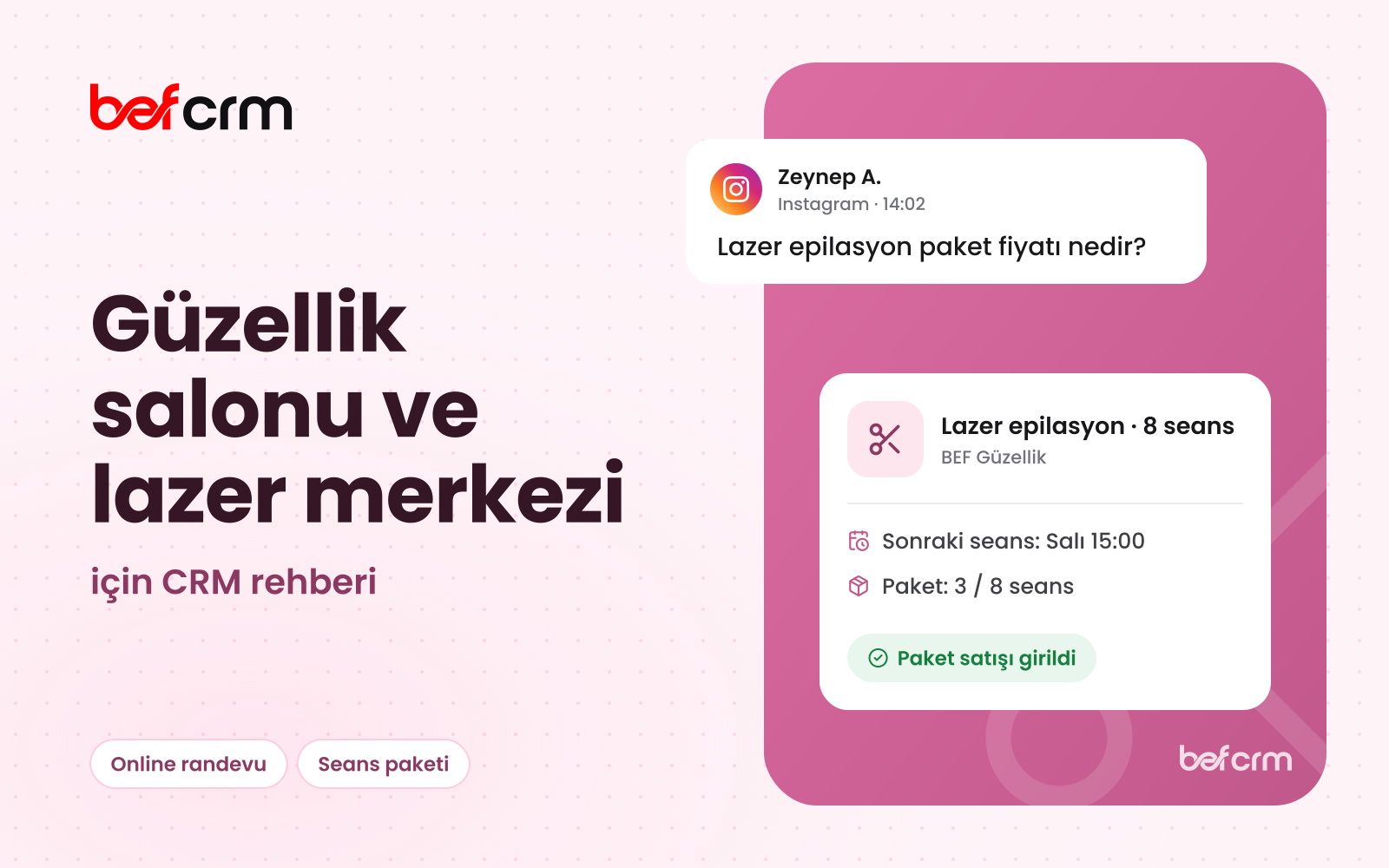
Before the appointment, the customer gets a reminder with “I’m coming”, “Let’s cancel” and “Another time” buttons; a customer who chooses “Another time” is offered free slots on the same day. For session-based sales like laser packages, the session package module keeps track of remaining sessions, and each completed appointment deducts one session from the package. With renewal suggestions before the package runs out and recurring reminders based on the maintenance interval, you don’t have to wait for customers to come back on their own.

The recommended modules are: Appointments and sessions, Session packages and credits, Recurring reminders, Photo sessions and before / after, Staff bonuses and commissions, Loyalty, points, gift vouchers and referrals. Our team enables the modules on your account; you can see what they do on the industry-specific modules page.
Before / after photos and skin information
Before / after photos are stored with the customer’s consent. Keep photos in the customer record, not on staff members’ personal phones, and get separate explicit permission to share them on social media. Information such as skin conditions or medication use may qualify as health data and is subject to stricter rules under KVKK. This note is general information, not legal advice; consult a lawyer for details.
Where should you use the AI assistant?
The AI assistant steps in outside working hours or when a rep doesn’t reply within the time you set, and shares the service and price information from your knowledge base. For salons, the most effective use is answering “price?” messages that arrive at night from the price list and sending the booking link. If online booking is connected, the assistant offers only real free slots in the calendar.
The assistant doesn’t offer discounts or make price commitments, and instead of making up an answer on a topic that isn’t in the knowledge base, it hands over to a rep. Questions about suitability for a skin type, allergies or irritation after a treatment should go to a specialist; add these words to the direct handover list. For setup steps, see the AI section of the system guide.
Campaigns and consent
Messages such as pre-holiday treatments, laser before summer or a birthday discount are commercial messages. On the Campaigns screen, people without commercial message consent are skipped automatically, the same person doesn’t get a second campaign within 7 days, and consent is withdrawn for anyone who writes “DUR” or “STOP”. That’s why it matters to record consent at first contact, along with its channel and source. You can also select your audience by loyalty segment, for example to prepare a separate message for customers who haven’t come in for a while.
What to check in the weekly report
- How many records that got price info moved on to an appointment? Are there records in the “Price info given” stage that have exceeded their follow-up time?
- Appointments marked “no-show” on the calendar and customers who didn’t reply to reminders.
- The most frequently chosen close reason in loss analysis. If the same reason has topped the list for weeks, review your pricing or schedule.
- Revenue and bonus report per specialist, and customers whose package is about to run out.

Most of these figures are ready on the dashboard and the reports screen; for details, see the reports section.
First-week checklist
-
Connect your accounts
Connect your Instagram, WhatsApp and, if you have one, Facebook account; see messages gathered in one place in the inbox.
-
Enter services and durations
Enter each service’s duration and price on the Products screen; the booking page and the assistant use this information.
-
Set up specialists and working hours
Enter who works on which days, their time off and which services they provide; add the booking link to your Instagram profile.
-
Prepare quick messages
Create quick messages for the price list, address and booking link.
-
Review the rules
Adjust close reasons and follow-up times to your business, and define bonus rules for specialists.
How do I track remaining sessions in a laser package?
With the session package module on, a session balance is opened when a package is sold, and one session is deducted with every completed appointment. You decide whether a session is deducted for late cancellations or no-shows.
Do I have to reply individually to everyone asking about price under a post?
No. With comment rules, you can send a private message to comments containing words like “price” and open a lead record at the same time. You decide the content of the reply and which words trigger the rule.
How do I calculate specialists’ bonuses?
In the staff bonus and commission module, you define rules based on service, product or sales; at month end, a revenue and bonus report per specialist is produced.