CRM guide for retail, e-commerce and wholesale: from message to order
We explain the stages, rules and repeat-sales routine for answering a message that starts with “Do you have this in size 38?” by checking stock, turning the chat into an order and offering dealer-specific prices.
By BEF CRM Ekibi Updated
Contents 9 sections
At a store that sells on Instagram and WhatsApp, a large share of orders start with a message: “Do you have this in size 38?”, “When will it ship?” To reply, someone checks stock, the order is written in a notebook or spreadsheet, an IBAN is sent for payment and the receipt is awaited. On a busy day, when one of these steps is skipped, either the wrong product goes out or the customer waits.
In this guide, we explain the setup in BEF CRM for retail, e-commerce and wholesale businesses, from message to order and from order to repeat sale. A summary of the preset settings is on the Retail, e-commerce and wholesale page.
Stages and naming
With the industry settings, the board comes with three stages; leads appear as “Prospects”, customers as “Customers” and sales as “Sales”. The booking form comes with two preset questions (such as “Product / category you’re interested in”); these are useful if you offer in-store appointments or product demos.
| Stage | When does a record move here? | Work at this stage |
|---|---|---|
| Product info given | Product and price information given after checking stock | Confirm size, color and address |
| Quote / payment link sent | Quote or payment link sent from the chat | Track the payment and send a reminder if needed |
| Order received | Payment arrived and an order was opened | Prepare the order and update its status |
Decisions are quick in retail; give these stages short follow-up times. Records where a payment link was sent but no payment arrived should be visible the same day.

From message to order
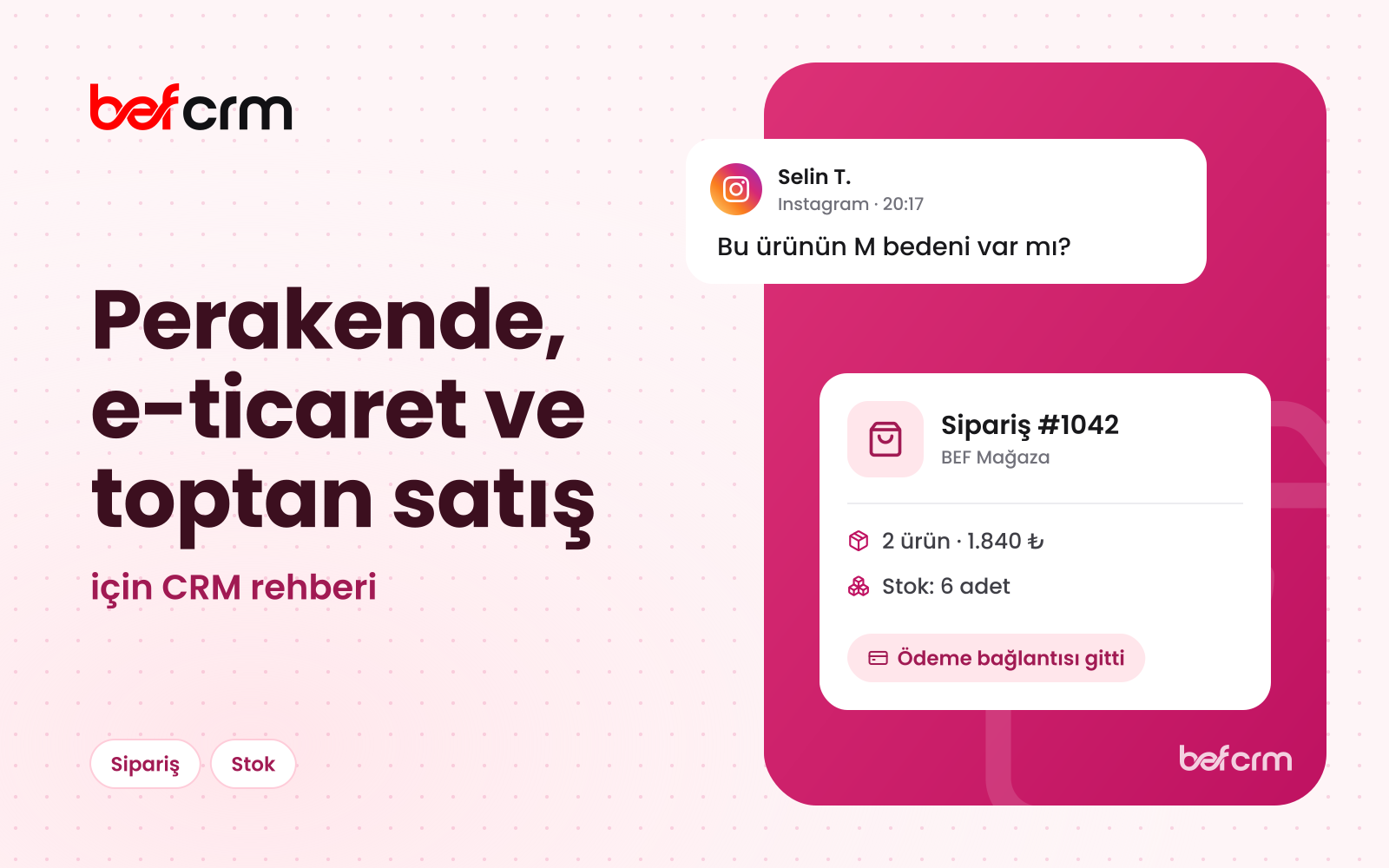
You turn the chat into an order with “Convert to order” and send the payment link in the same chat. The payment link works with your own iyzico, PayTR or Stripe account; for customers who pay by bank transfer, you approve the receipt they upload. Orders can be opened manually, from a paid payment link, from your site via the API or directly from the chat. As the status changes, an optional message goes to the customer, and delivery notes can be printed.

With each sale, stock is deducted and you get a warning at the critical level; stock is added back on cancellations and returns. You can answer frequent shipping, return and size questions with a single tap using quick messages.

Dealer- and customer-specific pricing
In wholesale, a price list is assigned to a person, an audience or everyone, with quantity tiers and validity dates. In quotes and sales, the price comes from the list, so dealers aren’t given the wrong price and every rep works with the same prices.
Close reasons and follow-up
The preset close reasons are: Found the price too high, Out of stock, Shipping time / cost didn’t suit, Payment method didn’t suit, Bought from another seller.
- Out of stock: a task is created for the rep 14 days later; if the product is back in stock, let the customer know.
- Found the price too high: a task is created in the next campaign period.
- Shipping time / cost didn’t suit: you can add your own rule for a follow-up 30 days later; shipping promotion periods are a good time for this.
- Payment method didn’t suit: if this reason shows up often, review the payment options you offer.
Repeat sales and loyalty
With the loyalty module, you define points for spending, gift vouchers and referral codes. The customer value and segments report divides customers into ten segments based on how recently they bought, how often they buy and how much they spend; customers who fall into the “At risk” or “Hibernating” segment are a natural audience for a win-back campaign, and you can use a segment condition in the campaign audience. Recommended module: Loyalty, points, gift vouchers and referrals.

AI assistant
The assistant can answer questions about products, size charts, and shipping and return terms by checking your product list and knowledge base. It doesn’t offer discounts or make price commitments. Return and exchange disputes, damaged product complaints and wholesale price negotiations should be handed over to a staff member; add these words to the handover list.
Campaigns and consent
On the Campaigns screen, you select the audience with conditions and send via WhatsApp template, SMS or email. People without commercial message consent are skipped automatically, and in the campaign details you see who was reached, who replied and who bought. In bulk sending, if the WhatsApp number’s quality drops, sending automatically slows down or stops; if the error rate is high, the campaign stops automatically.
What to check in the weekly report
- Records where a payment link was sent but no payment arrived.
- Records closed with “Out of stock”: which products are in demand?
- Replies and sales by campaign.
- Segment changes: customers who moved into the “At risk” segment.
- Profit / loss: net profit after costs, ad spend and expenses are deducted.
First-week checklist
-
Connect your channels
Connect Instagram and WhatsApp; see product questions open records.
-
Enter products and stock
Define products with their prices and stock quantities, and set critical stock levels.
-
Connect your payment account
Connect your iyzico, PayTR or Stripe account for payment links and try a payment in the test environment.
-
Define price lists
Enter price lists with quantity tiers for dealers and wholesale customers.
-
Prepare quick messages
Create quick messages for shipping, returns, the size chart and your IBAN.
How do I open an order from a chat?
With “Convert to order” in the chat, you create an order from the conversation. You can send the payment link in the same chat, and stock is deducted automatically on sale.
Can I give dealers different prices?
Yes. A price list is assigned to a person, an audience or everyone, and quantity tiers and validity dates can be defined. In quotes and sales, the price comes from the list.
Does a returned product go back into stock?
Yes. Stock is added back on cancellations and returns.