CRM guide for psychologists and therapists: confidentiality, regular sessions and package tracking
In therapy, confidentiality is non-negotiable. We explain who should see what, where to turn off AI and how to set up reminders as you take a prospective client from a pre-session call to regular sessions.
By BEF CRM Ekibi Updated

Contents 8 sections
Client management for psychologists and therapists is different from other industries. The first contact with a prospective client is often a hesitant email or a short message from the chat bubble on the website. Then come a regular session calendar, payment tracking and, most importantly, confidentiality: session notes should be seen only by the person who needs to see them.
In this guide, we explain how a therapy practice or counseling center can set up this routine in BEF CRM. A summary of the preset settings is on the Psychologists and therapists page.
Confidentiality and KVKK: not legal advice
Mental health information is health data and, under KVKK, is subject to stricter rules as a special category of personal data; professional ethics also require confidentiality. Determine with a lawyer which information you’ll process on which legal grounds, your privacy notice and your retention periods. This note is general information.
Who sees what?
Notes in the client file are encrypted field by field, open only to people with clinical permission, and every access is logged. The secretary sees appointment and payment information; only a therapist with clinical permission can open session notes. Intake information from the booking form isn’t shown in the reminder link. You define roles in the team, permissions and KVKK settings and make two-step verification mandatory for the whole team.

Stages and naming
With the industry settings, the board comes with four stages; leads appear as “Prospective clients”, customers as “Clients” and sales as “Sessions”.
| Stage | When does a record move here? | Work at this stage |
|---|---|---|
| Info provided | Fees, way of working and available days shared | Suggest an initial consultation |
| Pre-session call done | Short pre-session call completed | If it’s a fit, schedule the first session; if not, refer them elsewhere |
| First session scheduled | The day and time of the first session are set | Make sure the reminder goes out |
| Started therapy | First session held, session or package sale entered | Set up the regular session calendar |
Keep only contact and appointment information on the board; write notes with clinical content not in the lead record but in the client file, which only authorized people can see.

Close reasons and follow-up
The preset close reasons are: Session fee too high, No suitable day / time, In-person / online preference didn’t match, Not ready yet, Referred to another specialist.
- No suitable day / time: a task is created for the rep 7 days later; share newly opened times.
- Session fee too high: a task is created 30 days later. Keep the follow-up message short and free of pressure.
- Not ready yet: rather than persistent follow-up, a single message saying they can easily reach you when they’re ready is often more appropriate.
- Referred to another specialist: don’t create a follow-up.
Regular sessions and packages
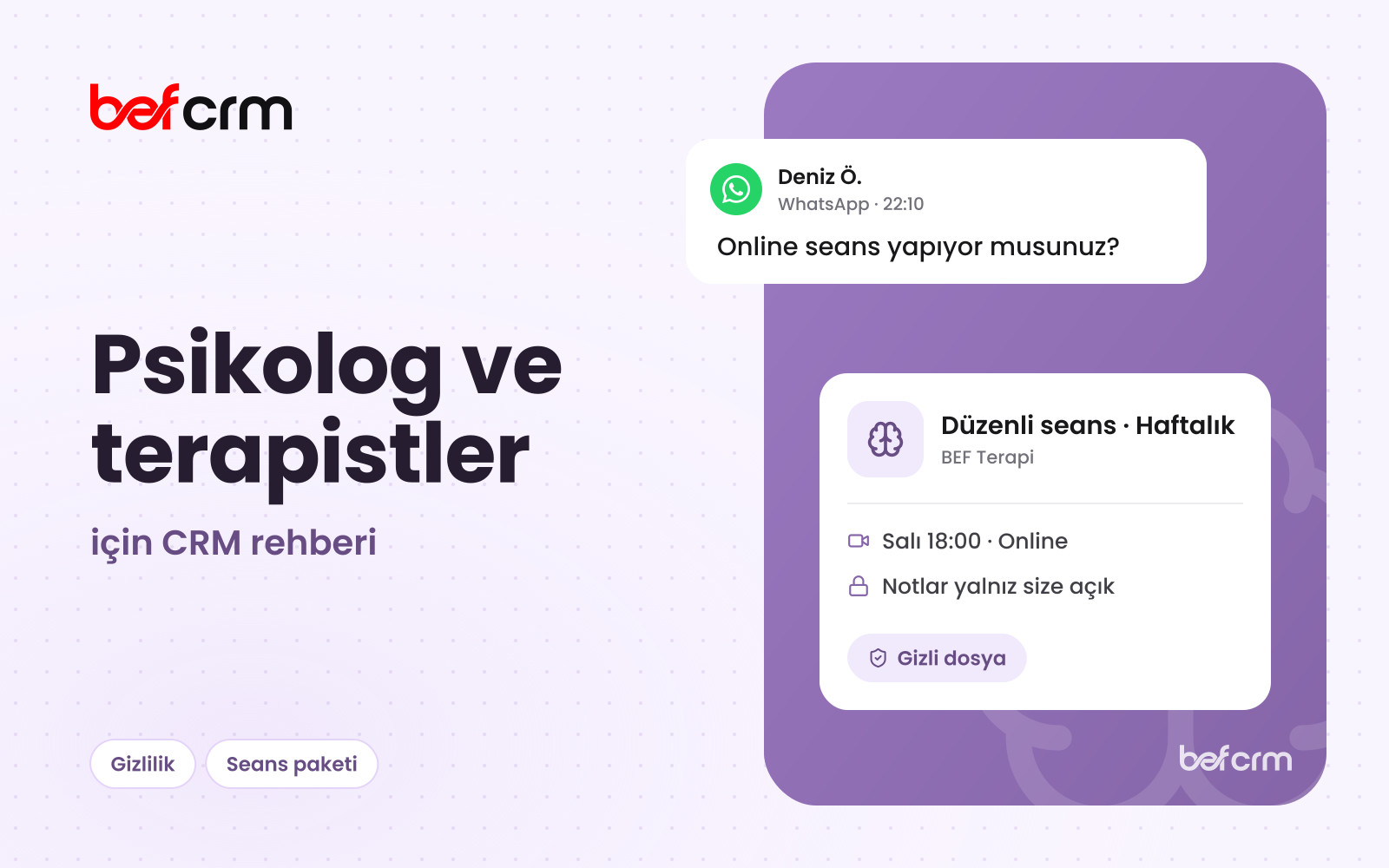
The client picks a time via the online booking link, and a reminder goes out a day before. You can define online and in-person sessions as separate services; the booking form comes with four preset questions (such as “Your preferred session format”). When a session package is sold, the balance is kept and deducted as each session is completed. You see canceled and missed sessions on the calendar with status colors, and recurring reminders can be set for regular sessions.

Recommended modules: Appointments and sessions, Client / patient file, Session packages and credits, Recurring reminders. You can collect payments with a payment link.

Where should you use AI, and where should you turn it off?
AI auto-replies can be turned off per account. For many therapy practices, the best starting point is to keep auto-replies off and have a person answer incoming messages. If you use the assistant, limit it to administrative information such as fees, how you work, the address and the booking link; don’t allow it to comment on what the client describes.
Write down in advance what to do with messages that show signs of a crisis or emergency: these messages should reach a person right away, and the client should be told to call 112 in emergencies. State clearly on your website and in your automatic message the hours outside working time when messages aren’t read.
Campaigns and consent
Sending bulk promotional messages to clients often doesn’t fit the nature of the therapeutic relationship. If you send something like a group session or workshop announcement, send it only to people with explicit commercial message consent; the campaigns screen automatically skips people without consent. Avoid wording in the message that implies the person is in therapy.
Weekly check
- First-contact messages awaiting a reply; in this field, a delay can lead the client to give up.
- Missed and canceled sessions.
- Clients whose package is about to run out.
- Whether there’s any unexpected access in the access logs.
First-week checklist
-
Choose your channels
Connect website chat and your email; decide whether you’ll use WhatsApp.
-
Separate roles
Define secretary and therapist roles; open clinical notes only to the therapist, and make two-step verification mandatory.
-
Define services
Enter online and in-person sessions, their durations and fees as separate services.
-
Make your AI decision
Keep auto-replies off or limit them to administrative information only; write your emergency text.
-
Set up reminders
Keep the text of the day-before reminder simple; check that intake information doesn’t appear in the link.
Can my secretary see session notes?
Not if their role doesn’t allow it. Session notes are encrypted field by field and open only to people with clinical permission, and every access is logged. The secretary sees appointment and payment information.
Does the reminder message show the client’s information?
Intake information from the booking form isn’t shown in the reminder link. Keep the reminder text simple too, without therapy-specific details.
Can I turn off the AI assistant completely?
Yes. AI auto-replies can be turned off per account; in that case, only your team replies to messages.