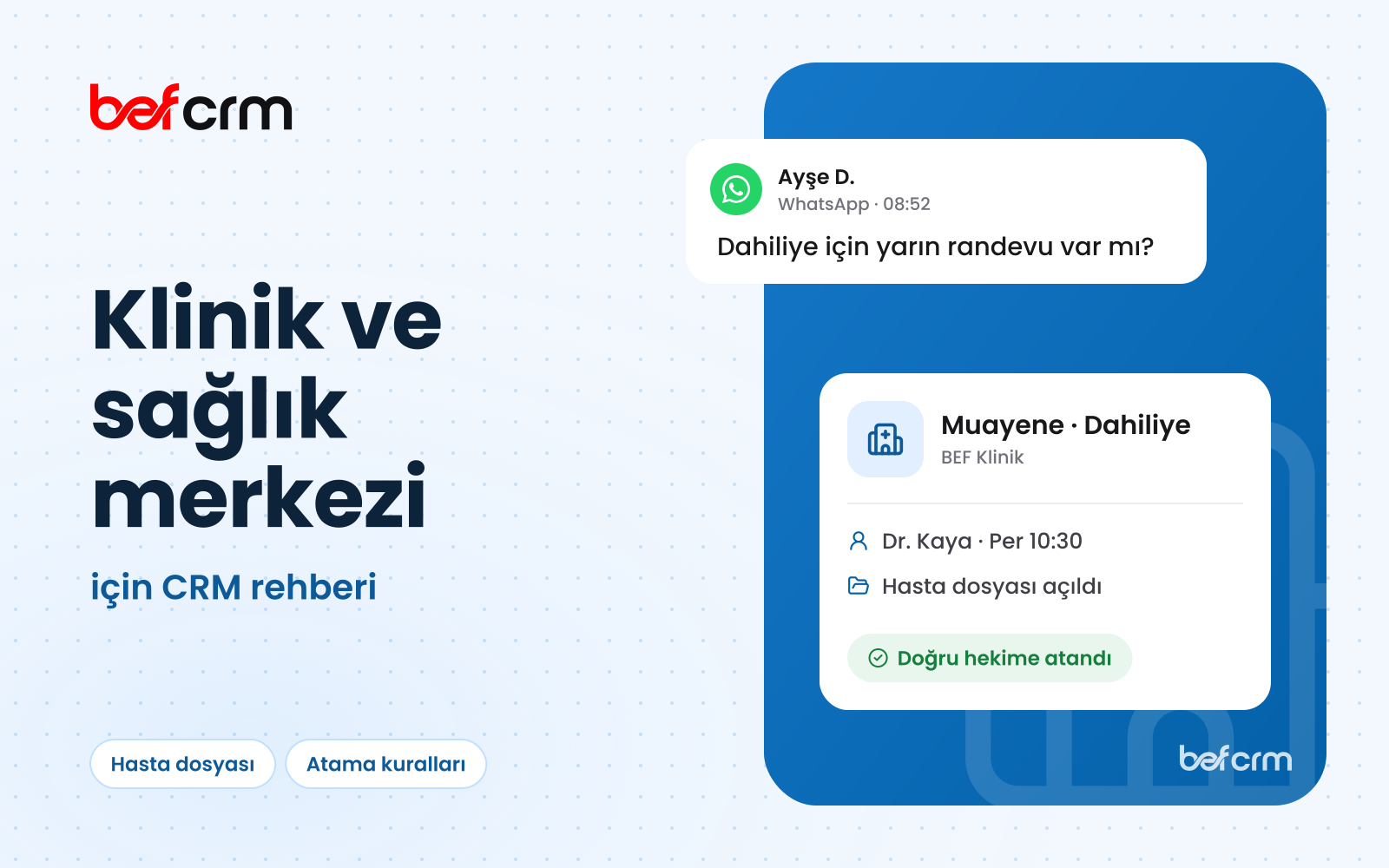
CRM guide for cleaning, renovation and technical services: from site survey to work order and signature
The quote was approved, but when is the crew heading out? We explain the stages and field routine for linking job requests to site surveys, surveys to quotes, and approved jobs to work orders and customer signatures.
By BEF CRM Ekibi Updated

Contents 9 sections
At businesses that provide field services, work starts in the office and ends in the field. A customer sends a repair or renovation request with photos via WhatsApp, a site survey is done, a quote is prepared and, once approved, the crew and vehicle are scheduled. When the job is done in the field, photos, a signature and a report are needed. When these steps are scattered across phone calls and paper forms, it becomes unclear which job is at which stage.
In this guide, we explain the routine from office to field in BEF CRM for cleaning, renovation and technical service businesses. A summary of the preset settings is on the Cleaning, renovation and technical services page.
Stages and naming
With the industry settings, the board comes with four stages; leads appear as “Job requests”, customers as “Customers” and sales as “Jobs”.
| Stage | When does a record move here? | Work at this stage |
|---|---|---|
| Info received | Request, address and photos received | Decide whether a site survey is needed |
| Site survey appointment | Site survey day and time set | Do the survey and enter measurements and notes in the record |
| Quote given | Quote sent via a link | Answer questions and track approval |
| Approved (work order) | The customer approved the quote | Open the work order, assign a crew and vehicle |
The booking form comes with five preset questions (such as “Service”). Site survey appointments can be booked online; photos sent by the customer make it easier to decide whether a survey is needed.

Quote and approval
After the survey, the quote is sent via a link; the customer opens it on their phone, accepts or rejects it, and signs on screen if a signature is required. Changes you make after sending create a new version, and the accepted version stays on record. Give the quote a validity period; an expired quote closes automatically, which keeps you from taking on a job at an old price when material prices change. A work order is opened for the approved job. For a down payment or payment, a payment link can be sent from the chat.

Work orders and field teams
In the work orders and field teams module, the work order holds the address, crew, vehicle, materials and notes. The work order is assigned to a crew and vehicle, and the crew sees the day’s jobs on the “My jobs today” screen. Daily routes and jobs per crew are planned. When the job is done, the crew uploads completion photos, the customer signs on the phone and a job report link goes to the customer. Materials used are deducted from stock. Recommended module: Work orders and field teams.


Close reasons and follow-up
The preset close reasons are: Found the price too high, Date didn’t work, Changed their mind / will do it themselves, Outside service area, Chose another company.
- Date didn’t work: a task is created for the rep 7 days later; suggest new available days.
- Found the price too high: a task is created in the next campaign period; a quote with a narrower scope may be an option.
- Outside service area: no follow-up needed; if this shows up often, state your service area clearly on your website and in quick messages.
- Changed their mind / will do it themselves: no follow-up needed; as these reasons accumulate in the report, they reveal how your prices are perceived.
Periodic maintenance and recurring jobs
Reminders are set for periodic maintenance contracts; when the time comes, a message goes to the customer or a task to your team. For recurring jobs such as regular cleaning, you can define tasks that repeat every week or every month.

AI assistant
The assistant can answer questions about service areas, service types, working hours and how site surveys are scheduled; if online booking is connected, it offers only real free slots in the calendar for surveys. It doesn’t make price commitments, and it shouldn’t estimate prices or diagnose faults from photos. For emergency words such as water leak, gas smell or electrical fault, hand the conversation over to a staff member, and write in the knowledge base that 187 should be called for a gas smell and 112 for other emergencies.
Campaigns and consent
Spring cleaning, air conditioner maintenance or seasonal campaigns are commercial messages; the campaigns screen skips people without consent. Sending a post-sale satisfaction question from the ready-made automations when a job is finished helps you both monitor service quality and ask satisfied customers for reviews.
What to check in the weekly report
- Requests that were surveyed but haven’t been sent a quote.
- Jobs that were quoted and are awaiting approval.
- Completed work orders and open jobs per crew.
- Material stock alerts.
First-week checklist
-
Connect your channels
Connect WhatsApp and Instagram; see requests with photos open records.
-
Enter services and prices
Define service types, unit prices and frequently used materials.
-
Set up crews and vehicles
Enter field crews, vehicles and service areas.
-
Prepare the quote template
Prepare a quote for the service you offer most often and try the link.
-
Try a work order in the field
Assign a work order to a crew; try the photo upload and customer signature steps in the field once.
What does the crew see in the field?
On the “My jobs today” screen, the crew sees the day’s jobs, addresses and notes. When the job is done, they upload the completion photo and have the customer sign on the phone.
What is sent to the customer when the job is done?
When the job is completed, a job report link is sent to the customer; the photo and signature are added to the work order.
How do I track periodic maintenance contracts?
You set up a reminder for periodic maintenance; when the time comes, a message goes to the customer or a task is created for your team.